> ## Documentation Index
> Fetch the complete documentation index at: https://docs.iroh.computer/llms.txt
> Use this file to discover all available pages before exploring further.
# API Keys
> Authenticate your endpoint to Iroh Services to push metrics and connectivity reports
API keys authenticate your endpoint to Iroh Services. Iroh itself is permissionless — connections between two endpoints never need authorization — but the resources in your project belong to you. Your API key is what lets an endpoint push data into your project and connect to your project's dedicated relays.
## What API keys authorize
API keys are required for:
* Uploading metrics from endpoints to your project
* Sending network diagnostics reports from endpoints to your project
* Connecting to your project's [dedicated relays](/iroh-services/relays/managed), which require authentication by default
API keys are **not** required for:
* Connecting through the public relays
* [NAT traversal](/concepts/nat-traversal) connections to other iroh endpoints
## Get an API key
After signing in, [create a new project](https://services.iroh.computer/projects/projects/new?utm_source=docs\&utm_content=quickstart). This is your sandbox for all endpoints, the control center where you manage relays, metrics, and networks.
[ ](https://services.iroh.computer/projects/projects/new?utm_source=docs\&utm_content=quickstart)
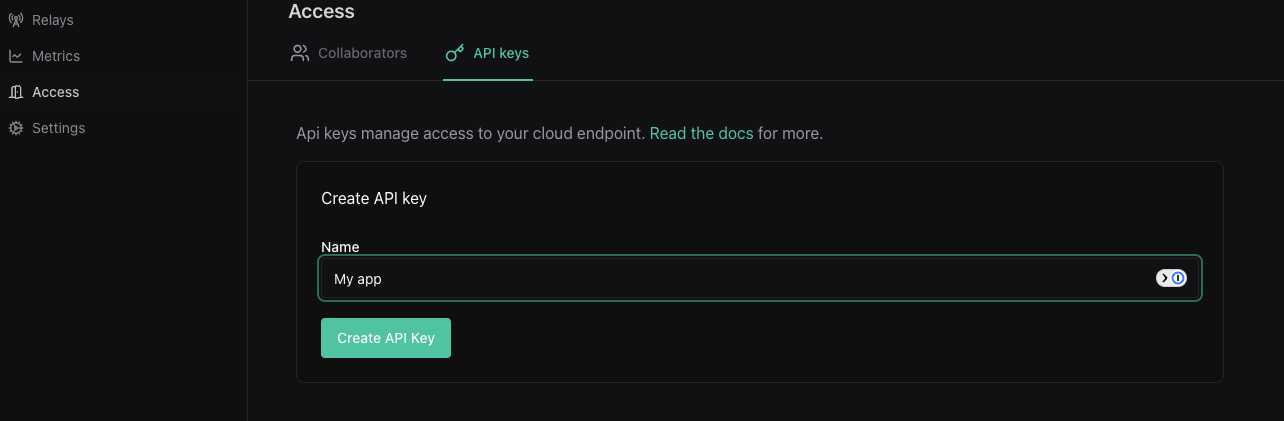
Then navigate to your project's **Settings → API Keys** tab and click **Create API Key**. The key is shown once on creation, so copy it somewhere safe.
](https://services.iroh.computer/projects/projects/new?utm_source=docs\&utm_content=quickstart)
Then navigate to your project's **Settings → API Keys** tab and click **Create API Key**. The key is shown once on creation, so copy it somewhere safe.
 The environment variable used by the Rust client is `IROH_SERVICES_API_SECRET` (named for legacy reasons; same thing as your API key).
## Use it in your app
Pass the key when building your `iroh_services::Client`:
```rust theme={null}
use iroh_services::Client;
let client = Client::builder(&endpoint)
.api_secret_from_str("YOUR_API_KEY")?
.build()
.await?;
```
In production, load the key from a config file or environment variable instead
of hardcoding it.
For a full walkthrough (creating an endpoint, naming it, and verifying it on the
dashboard) see the [Iroh Services quickstart](/iroh-services/quickstart).
## What's next
Today, API keys gate metrics and net diagnostics uploads and access to your
dedicated relays. Future versions may support per-resource permissions and
time-based access control. If your use case needs that today, [contact
us](https://n0.computer/contact).
The environment variable used by the Rust client is `IROH_SERVICES_API_SECRET` (named for legacy reasons; same thing as your API key).
## Use it in your app
Pass the key when building your `iroh_services::Client`:
```rust theme={null}
use iroh_services::Client;
let client = Client::builder(&endpoint)
.api_secret_from_str("YOUR_API_KEY")?
.build()
.await?;
```
In production, load the key from a config file or environment variable instead
of hardcoding it.
For a full walkthrough (creating an endpoint, naming it, and verifying it on the
dashboard) see the [Iroh Services quickstart](/iroh-services/quickstart).
## What's next
Today, API keys gate metrics and net diagnostics uploads and access to your
dedicated relays. Future versions may support per-resource permissions and
time-based access control. If your use case needs that today, [contact
us](https://n0.computer/contact).